IFCU/Skyline OS Support Resources
IFCU2026-03-17
Table of Content
- 5057D USB Installation Instructions
Software Information
Table 1. 5057D Launch Table
Release Phase | Affected Models | Release Date |
|---|---|---|
Phase 1: Over The Air (OTA) | 2025-2026 CVOModels | March 9, 2026 |
Phase 2: OTA | 2023-2026 Touring and 2026 Trike | March 16, 2026 |
Phase 2: USB | 2023-later models with Skyline OS software version 2237D or earlier | March 16, 2026 |
For 5057D OTA installation instructions and troubleshooting guide, see https://serviceinfo.harley-davidson.com/documents/lookup?reference=IFCU_OTA
NOTE
If Skyline™ OS software version is (260002237D) or earlier, the update will need to be performed through Universal Serial Bus (USB) process. USB files and instructions will be posted on March 16, 2026. See bulletin M1715 for additional details.
For Skyline™ OS P&A instructions and download file, Infotainment Support Resources
Skyline OS USB Update Preparation
| 1. | Required software files will need to be downloaded for the Skyline™ OS. Refer to:Infotainment Support Resources page. | |||||
| 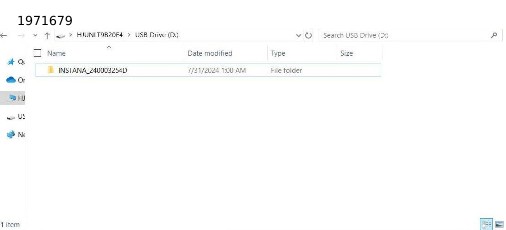 Figure 2. USB-1 Contents | |||||
| 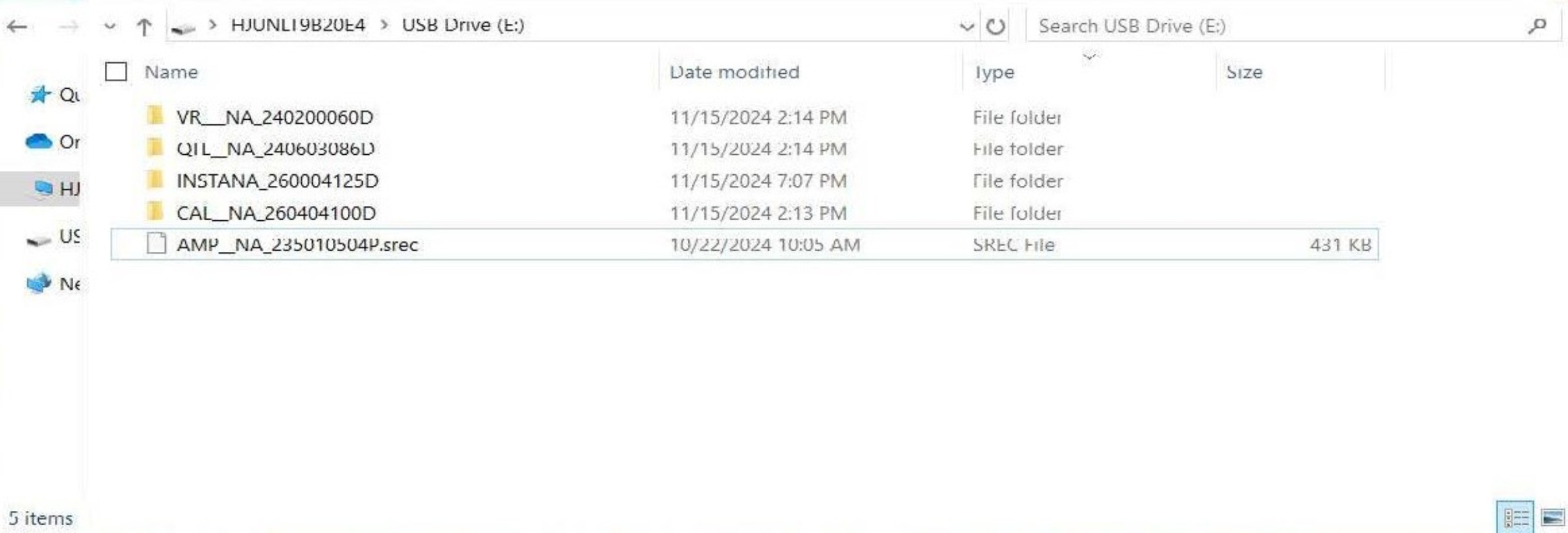 Figure 3. USB-2 Contents Video 1. USB_check_MY26.bat - USB Contents and Format Verification | |||||
| 2. | Prepare vehicle for software update: | |||||
| 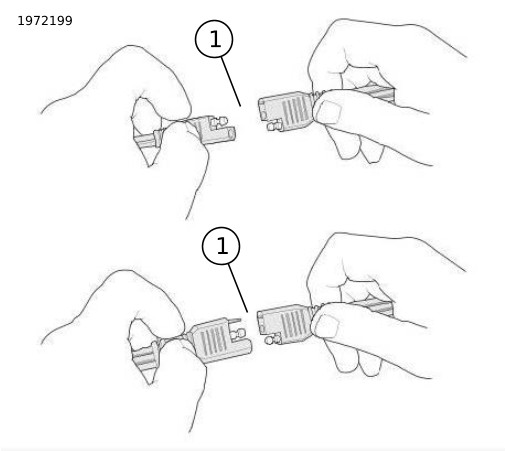
Figure 4. Connect Battery Tender | |||||
| 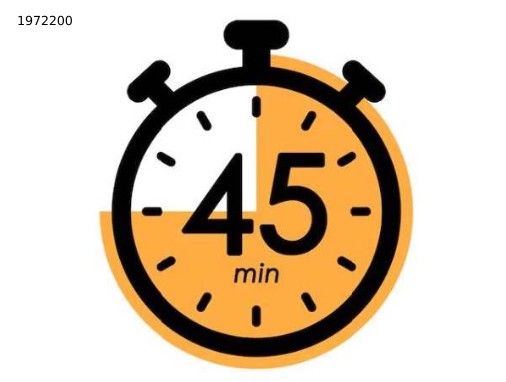 Figure 5. Process Timing |
Skyline OS Update Procedure
| 1. | Turn vehicle to ACCESSORY MODE. a. See Figure 6. Press and hold Trip Switch for 3 seconds. | 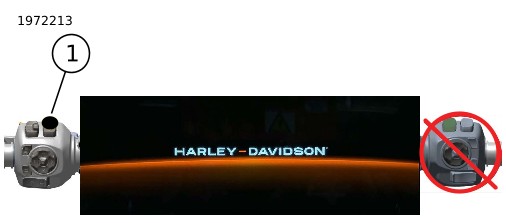
Figure 6. Trip Switch | ||||||
| 2. | See Figure 7. Wait until the Infotainment Control Unit (IFCU) fully boots up and the Main Menu is visible. | 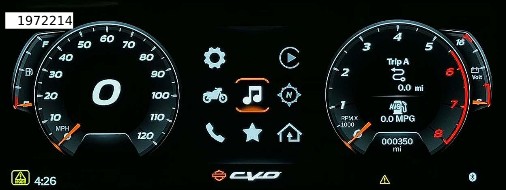 Figure 7. Main Menu | ||||||
| 3. | Check software version: | 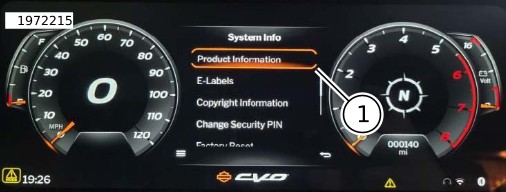
Figure 8. Product Information | ||||||
| 4. | See Figure 9. Insert USB 1 into the vehicle's USB cable. | |||||||
| 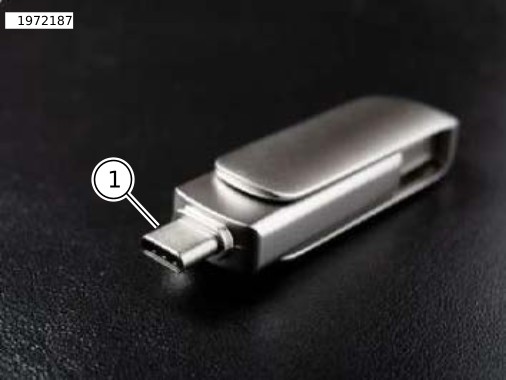
Figure 9. USB 1 | |||||||
| 5. | Wait for the system to recognize it. When prompted, select: a. See Figure 10. UPDATE to proceed. b. CANCEL to stop the process. | |||||||
| 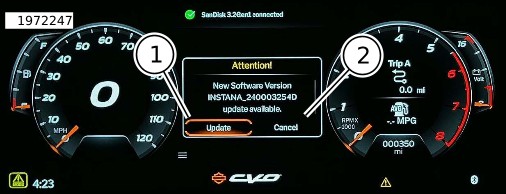
Figure 10. System Recognition 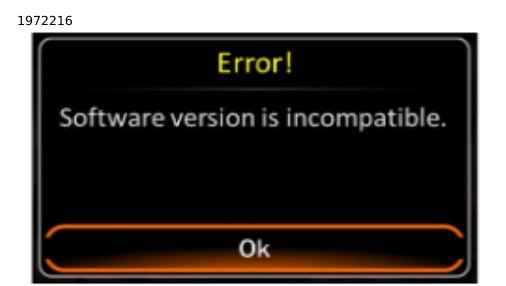 Figure 11. IFCU Software Error | |||||||
| 6. | See Figure 12. After update completes, USB1 will need to be removed before the IFCU will reboot. | 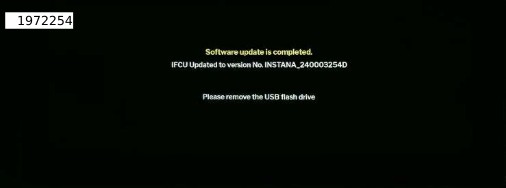 Figure 12. Completed Software Update | ||||||
| 7. | Remove USB1. See Figure 13. |
Figure 13. USB 1 | ||||||
| 8. | See Figure 14. The IFCU will reboot automatically once USB 1 has been removed. DO NOT USE THE HAND CONTROLS TO TURN BIKE OFF OR ATTEMPT TO TURN ON. | 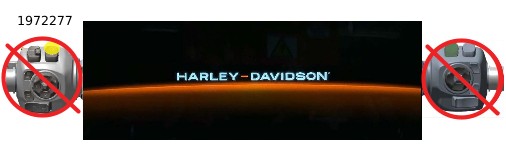 Figure 14. DO NOT USE HAND CONTROLS | ||||||
| 9. | See Figure 15. Wait for the IFCU to fully boots up and the main menu is visible. | 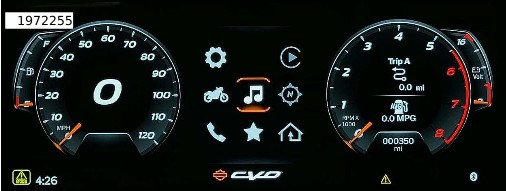 Figure 15. IFCU Main Menu Screen | ||||||
| 10. | See Figure 16. Insert USB 2 into the vehicle's USB cable. NOTE See Figure 17. DO NOT REMOVE USB2 AT ANY TIME DURING THE UPDATE PROCESS. DO NOT USE THE HAND CONTROLS TO TURN THE BIKE OFF OR ATTEMPT TO TURN ON. a. See vehicle's owner's manual for USB cable location. | 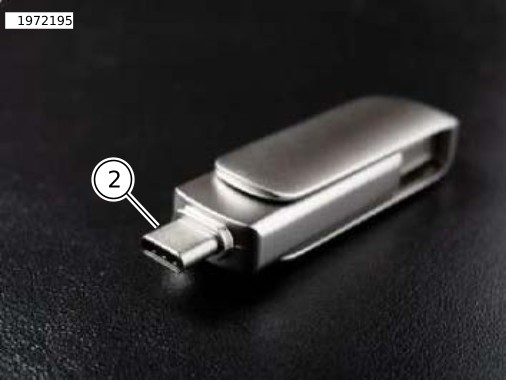
Figure 16. USB 2 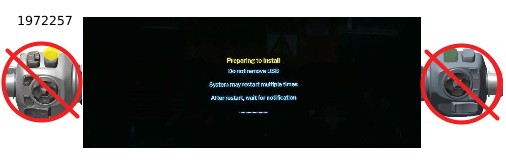 Figure 17. DO NOT USE THE HAND CONTROLS | ||||||
| 11. | See Figure 18. Wait for the system to recognize it. When prompted, select: | 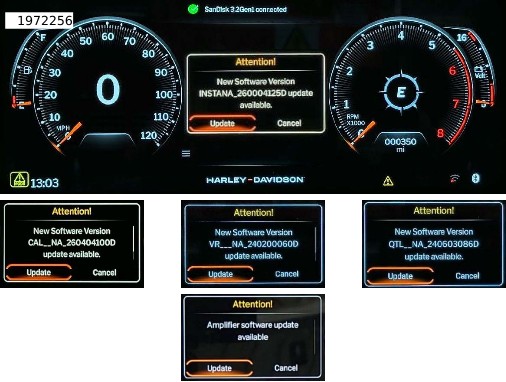 Figure 18. Perform Five Updates | ||||||
| 12. | See Figure 19. After the last update has been completed, a pop-up message will say: Updates Completed. a. This message will only display for 10 seconds and then will self-clear. | 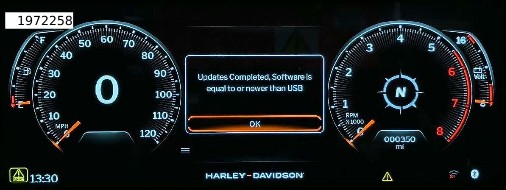 Figure 19. Pop-Up Message | ||||||
| 13. | See Figure 20. Remove USB 2. |
Figure 20. USB 2 |
COMPLETE
NOTE
Warning ICONS are expected and will clear upon restarting the bike.
| 1. | See Figure 21. Turn the vehicle OFF manually. a. To clear any warning ICONS. Leave the vehicle off for 60 seconds before turning ON again. | 
Figure 21. Warning Icons Displayed | ||
| 2. | All software Updates have been completed. Verify through IFCU: a. Skyline OS b. Navigate: Settings > System > System info > Product information c. Amplifier d. Navigate: Settings > Sound > Speaker Setup > Device Status > Info e. Verify audio is heard. |
Release Notes
Update 5057D
Date: 2026-03-02
Fixes:- Battery Drain while the vehicle is OFF
- Miscolored Pixels shown on Tachometer
- Custom Equalizer display accuracy
- Data loss resulting in Vehicle Identification Number (VIN) Error
- Bluetooth Connection Robustness improvements
- HomeLink Disabling Unintentionally
- CAL file update process improvement
- WiFi Disabling Unintentionally
- Automatic Volume Control (AVC) display accuracy update
- Global Positioning System (GPS) connection Robustness improvement
- Single connected I-Phone displayed twice in Device Manager
- Unintended Audio source change during Phone Call
- IFCU resetting
- Auto Time not properly setting after GPS connection
- Ride Mode Customization not able to Save based on Language selected
- Support for Parts and Accessories (P&A) Amplifier update
Amplifier version 1.6.1.0
Date: 2026-01-20
- Support for P&A Fairing Lower and Tour-Pak speakers
New Features:
Update 4125D
Date: 2025-01-27
Fixes:- Software update process operation.
- Battery drain potentially caused by IFCU response to customer interaction with the motorcycle when it should be in an off-power state
- Subwoofer Gain adjustment functionality
- Intermittent CarPlay connection and interaction
- Intermittent mixed display High Contrast/Dark Mode
- Intermittent access and display of main menu and widgets
- Intermittent audio playback interruption after an announcement or prompt
- Intermittent loss of audio due during a low battery voltage engine start
- Navigation not enabling correctly after purchase of embedded navigation
- Loss of audio or menu not loading after ignition cycle
- GPS location not updating after quick ignition cycle
- Trip A/B widget accuracy
- Intermittent incorrect displaying of Diagnostic Trouble Code (DTC) U148983
- Original Equipment (OE) audio configuration sound
- Map Zoom in/out with Left Hand Control Module (LHCM) up/down buttons on Directional Pad
- P&A Audio content (added speaker Stage levels and Subwoofer auto detect)
- Enables OTA updates
Amplifier version 1.5.0.0 (Requires IFCU version 2237D prior to install)
Date: 2024-07-10
- Support for P&A Subwoofer
New Features:
Update 240002237D
Date: 2024-03-07
- Speaker setup Menu. Allows speaker configuration changes to support P&A kit installs.
- Help Menu
New features for vehicles that originally had 240001467D software.
- Audio: No audio/ loss of audio, Headset interaction-volume controls
- Navigation: Location not updating, Online Services- enable Embedded Navigation
- Navigation: Location not updating, Online Services- enable Embedded Navigation
- Bluetooth: Connection robustness
- CarPlay: Wired and Wireless connection robustness
- Infotainment: Transport Mode screen, display improvements, Boot up improvements, HomeLink improvements.
- Navigation: Lockup fixes, location not updating, Ride Planner improvements
- Voice Recognition improvements
- Various other bug fixes.
Skyline OS Update Troubleshooting Guide
Table 2. Troubleshooting Guide
CONCERN | CAUSE AND CORRECTION |
|---|---|
When inserted BOTH USB1 (3254D) and USB2 (5057D) give Error message: “Software version is incompatible. unknown” 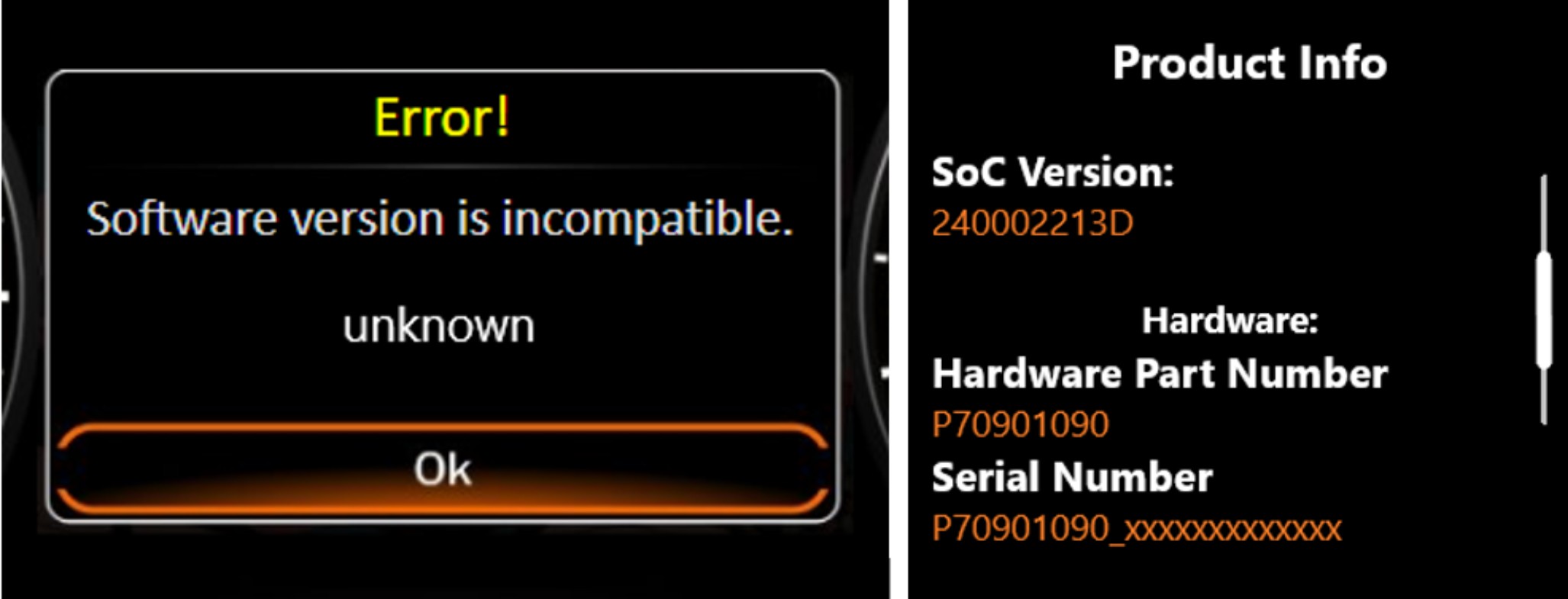 |
|
USB has been inserted but the IFCU never shows that it is connected. 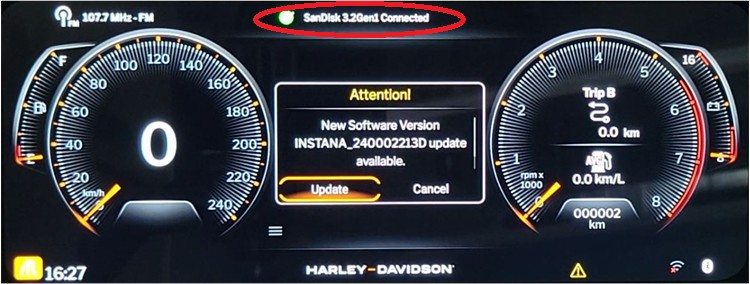 | USB needs to be inserted only AFTER the IFCU has fully booted up. Disconnect and reconnect USB. For USB brand, size and formatting, see USB Drive Best Practices. |
USB is recognized but the update never starts. 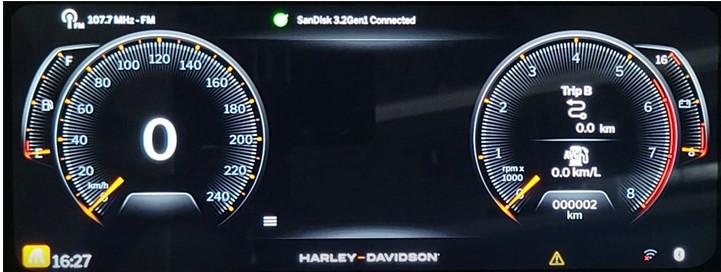 | Folder loaded onto the USB is still Zipped preventing IFCU from reading it. The folder name has accidentally been renamed. Folders need to keep their names as designed for the IFCU to identify them. Update folders where never loaded onto the USB. |
Update did not start or stopped with Battery Level Error message. 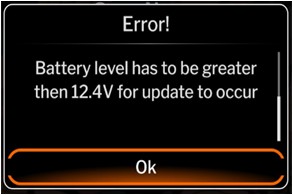 | The IFCU check battery voltage before each update. If voltage is too HIGH or too LOW you will see this warning. Battery voltage should be between 12.1-13.5 volt to continue. If battery is fully charged, but the "Error!" message continues to display, disconnect the Engine Temperature Sensor. Then attempt the update again. |
Receiving Error message about software being incompatible and update will not start. 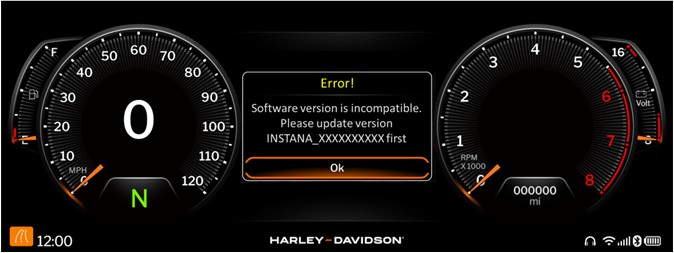 | You are attempting USB 2 updates before USB 1 updates. 2023 FLHXSE and FLTRXSE requires USB 1 update first. |
The first sequence of update started and finished but now it will not automatically continue to the next one, like the instructions said.  | You are attempting USB 2 updates without first doing USB 1 updates. On 2024 vehicles, if you do not perform USB 1 update first, the USB 2 update will require you to remove the USB after the 1st sequence and then reinstall it. |
Receiving: Error! IFCU Update failed: Error XXXX 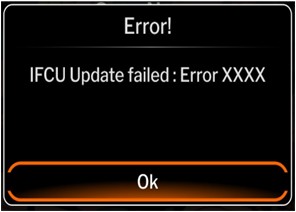 | The USB has a file on it that is incomplete or corrupt. Delete everything from the USB. Redownload the update and try again. |
Update stopped during the last sequence (amplifier update) and received this warning: Software Update Failed! Update has been cancelled. 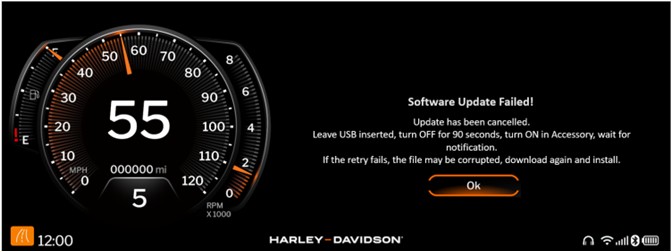 | The Amplifier update failed. To reset this connection follow the instructions on the screen. Leave the USB inserted, turn the bike off for 90 second, turn the bike ON in Accessory. Update should resume. |
Update is taking too long or seems stuck. | The times listed for each sequence are for reference only. The times may vary based on the quality and speed of your USB. Refer to USB Drive Best Practices. . |
Update has not progressed and is far past the estimated amount of time. 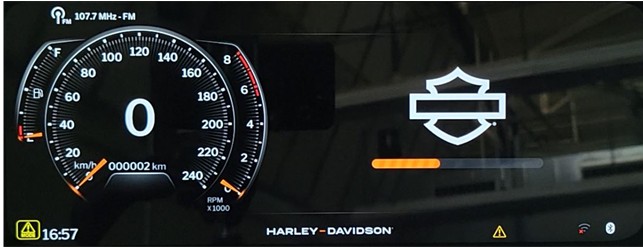 | If the status bar has not moved for more than 30 minutes, leave the USB inserted, turn the bike OFF, allow to sit for 2 minutes, then turn back ON in Accessory. If the status bar remains "stuck", leave the bike ON in Accessory, leave USB inserted, remove the main fuse. Allow to set for 2 minutes, then reinstall the main fuse and turn ON in Accessory. |
Receiving error: Software Update Failed! USB Disconnected. 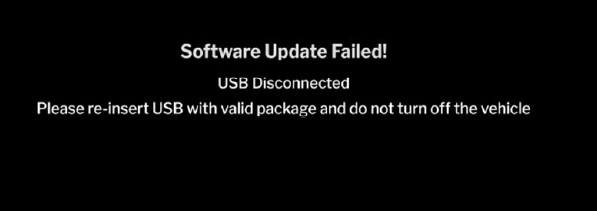 | DO NOT REMOVE THE MAIN FUSE With vehicle still in Accessory, disconnect USB thumb drive and then reconnect thumb drive. If the update doesn't proceed, transfer the update files/folders to a new USB thumb drive and try again. |
Receiving error: No valid software update is found. 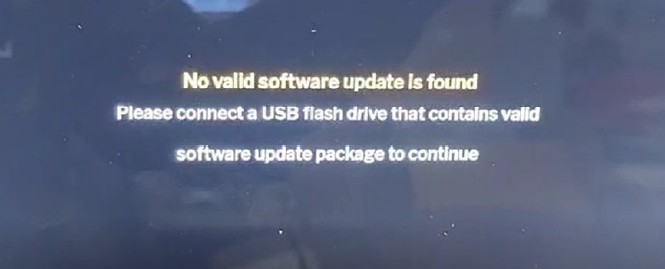 | Pull the Main Fuse Redownload the IFCU update onto a new USB thumb drive Insert the new USB into the the vehicle's USB‐C cable Install Main Fuse Turn vehicle ON in Accessory mode |
Questions and Answers
- The audio is too quiet. Can I make it louder?
- To improve audio output it is recommended that the H-D Signature equalizer setting is used. See Figure 33.
- If playing audio through an I-Phone it is also suggested that in your Music settings, turn EQ off and disable Sound Check and Crossfade. See Figure 34.
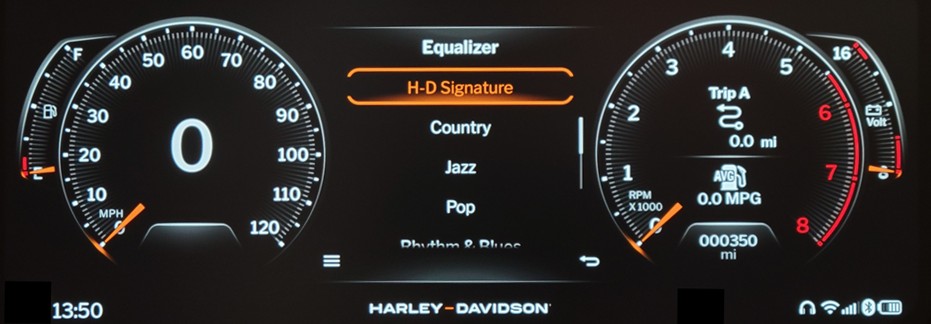 Figure 33. IFCU H-D Signature
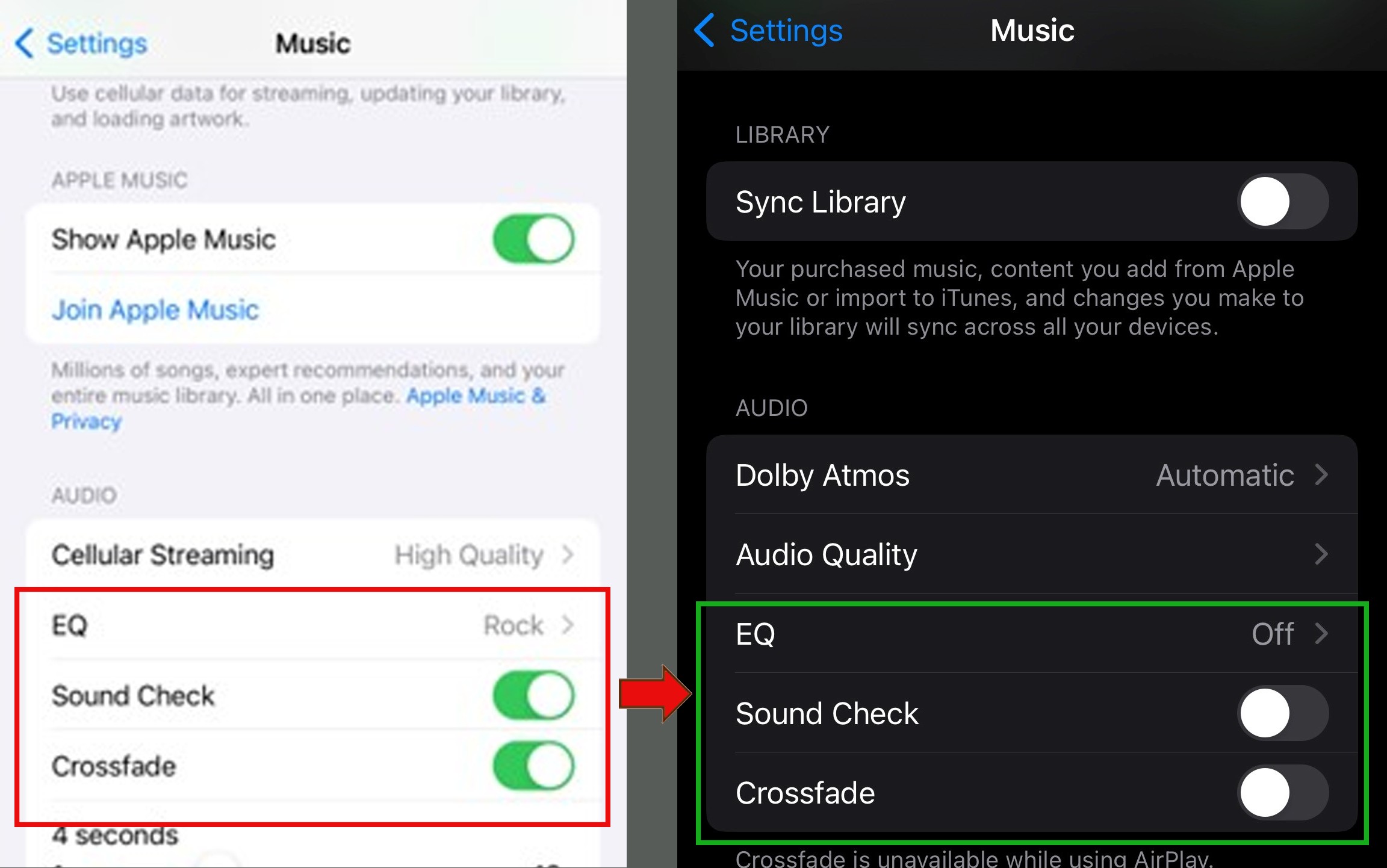 Figure 34. I-Phone Music Settings
- Can I route phone call audio from my headset to the bike's speakers?
- No. Phone call audio cannot be routed through the bike's speakers.
- Does Apple CarPlay require a headset to work?
- Yes. A headset must be paired to the bike for CarPlay to work.
How-to Videos
Audio
Video 2. Audio - Setting Fade
Video 3. Audio - Speaker Settings
Video 4. Audio - Tuner Settings
Video 5. Audio - Delete Favorite Tuner
Video 6. Audio - Headset Setting
Video 7. Audio - Set Favorite Tuner
Video 8. Audio - Setting Automatic Volume Control (AVC)
Video 9. Audio - Setting Equalizer (EQ)
Navigation
Video 10. Navigation - Adding Point Of Interest (POI) to Route
Video 11. Navigation - Audio Routing
Video 12. Navigation - Cancelling A Route
Video 13. Navigation - Importing From Ride Planner
Video 14. Navigation - Delete HOME
Video 15. Navigation - Display
Video 16. Navigation - Prompt Muting
Video 17. Navigation - Ride Record
Video 18. Navigation - Set a Route
Video 19. Navigation - Set HOME
Video 20. Navigation - Weather
Phone
Video 21. Phone - Playing Music Through Paired Phone
| A headset must be paired with vehicle for this feature to work. |
Video 22. Phone - Carplay Enable
Video 23. Phone - Menu Options
Video 24. Phone - Pairing
Setup
Video 25. Setup - Custom Ride Mode Settings
Video 26. Setup - Display Layout
Video 27. Setup - Units Change
Video 28. Setup - VOX Sensitivity
Video 29. Setup - Widgets Displayed Using Trip Switch
Video 30. Setup - Connecting WiFi Iphone (5Ghz only)
Video 31. Setup - Connecting WiFi Android (5Ghz only)
Wireless Connectivity/Headset
Video 32. Wireless Connectivity - Pairing a Headset
Video 33. Wireless Connectivity - Passenger Headset Audio Settings
Video 34. Wireless Connectivity - Rider Headset Audio Settings
USB Drive Best Practices
- Use a reputable brand of USB flash drive (e.g., SanDisk, Kingston, Samsung, PNY)
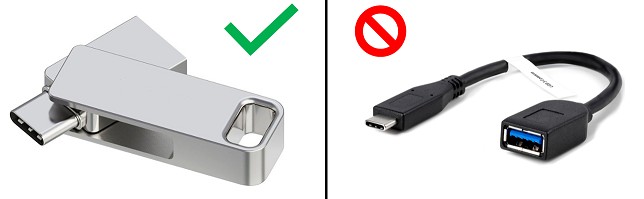
- Use a dual USB-A/USB-C drive (no adapters)
- Choose a drive with at least 100 MB/s read/write speed, typically specified on the packaging (e.g. "Speed up to 200MB/s").
- To ensure a drive—whether existing or newly purchased—is formatted properly for your device, follow the formatting method based on your device:
- IFCU/Skyline OS, Amplifier: exFAT
- Pan America/Sportster S/Nightster S TFT Gauge, GT/GTS Radio: FAT32
- Only have one update file on the drive at a time. Review specific installation instructions to verify the correct file or folder is copied to your USB.
- Drive size should be 32GB. Drives larger than 32GB can't be formatted to FAT32 and will not work for updates requiring that format.
To optimize software updates and minimize potential issues, follow these best practices regarding your USB device.