| 1. | Refer to Operation → Infotainment Control Unit (IFCU) → IFCU Menu Selections. Navigate: Home > Phone (3). a. If no phone is paired, you will be prompted to Add Phone. | |
| 2. | Select one of the phone features. See Figure 2. |
Connecting a phone to the USB port allows the phone to charge and may provide additional media features. However, a USB connection alone will not operate the phone features.
NOTE
Using the factory phone USB cable ensures proper performance for data exchange.
NOTE
- A phone must first be paired before call or text notifications can be viewed through the Infotainment Control Unit (IFCU).
- A headset with microphone is required to make and receive calls via Bluetooth.
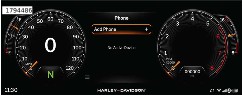
Figure 1. Add Phone
Making a Call
| 1. | Refer to Operation → Infotainment Control Unit (IFCU) → IFCU Menu Selections. Select the phone (3). | |
| 2. | See Figure 2. Select contacts (1) or call history (2) to find contact number. | |
| 3. | Select contact to call. | |
| 4. | Press OK/enter on LHCM to call. | |
| 5. | See Figure 3. To place caller on hold, select hold (4) and press OK/enter. Press OK/enter again to remove from hold. | |
| 6. | To end call, select end call (3) press OK/enter. |
Voice recognition can be used to place a call through the IFCU.
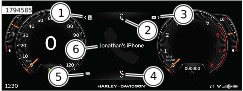
| 1 | Contacts |
| 2 | Call history |
| 3 | Messages |
| 4 | Favorites |
| 5 | Menu |
| 6 | Connected device |
Figure 2. Phone Selections
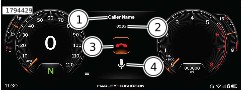
| 1 | Caller |
| 2 | Call duration |
| 3 | End call |
| 4 | Hold |
Figure 3. In Call Functions
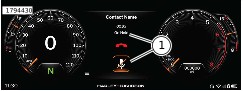
| 1 | On hold indicators |
Figure 4. Call On Hold
Receiving a Call
See Figure 5. When receiving a call a notification will be displayed on the IFCU.
Use the Left Hand Control Module (LHCM) to answer (3), ignore (4), or send a text reply (2).
See Figure 3. To end the call select end call (3).
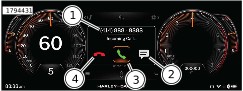
| 1 | Incoming call information |
| 2 | Text reply |
| 3 | Answer call |
| 4 | Ignore call |
Figure 5. Incoming Call
Messages
See Figure 2. To access messages select Message Icon(3).
Message text will be converted from text to speech while in motion. The option to reply with a call or create a text with voice recognition will be available. Message text will appear as text when not in motion with an option to play as text to speech.
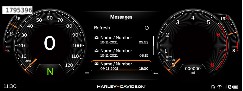
Figure 6. Messages
Car Play
During projection mode, the Apple CarPlay image is displayed. Also, the tuner or media selections are paused, active route is cancelled and projection mode assumes priority. Upon exiting projection mode all items return to normal radio functions.
CarPlay is compatible with iPhone 5 and later models.
NOTE
Apple CarPlay does not require an app download. When connected, not all iPhone apps will be displayed on the screen, only Apple approved apps.
CarPlay will not activate without the use of a headset and microphone.
Apple CarPlay is available wirelessly. Phone will need to be Bluetooth paired and connected. USB connection can also be used.
| 1. | Turn power ON in ACC or IGN ON. | |
| 2. | Connect iPhone to IFCU. a. WIRED: Use Universal Serial Bus Type-C (USB-C) cable to connect iPhone to vehicles Universal Serial Bus (USB) connector. | |
| 3. | Accept pop-up "Do you want to enable Apple CarPlay®". |
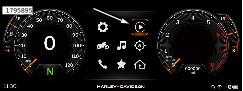
Figure 7. Apple CarPlay Available
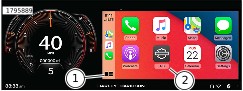
| 1 | Close application |
| 2 | H-D logo |
Figure 8. Apple CarPlay Exit