NOTE
- Navigation function not equipped in all markets or on all motorcycles.
- If navigation icon is not enabled a prompt to enable subscription based navigation will be shown when selecting navigation.
The navigation function is intended to assist you when traveling. In some circumstances, information provided by the navigation function may be incomplete, incorrect or outdated. Road conditions, traffic laws and restrictions (such as no left turns, street closures, one way streets, road construction detours, and so on) can frequently change. Before following any instruction, check that the instruction can be done safely and legally. Program and review navigation routes with the vehicle stopped. If necessary, safely park the vehicle if there is difficulty following the route guidance or to program a new route.
NOTE
- Some advanced features require a Wifi connection to function. For best maps and navigation experience pair a Wifi hotspot from your mobile device.
- Navigation not available in all markets.
Setting Route
NOTE
When parked keyboard will appear. When moving, non accessible functions will be grayed out. When moving, voice commands or a list of Point Of Interest (POI) must be used to find a destination in system. Search results will appear on screen. Select destination to start route.
Setting route through IFCU
| 1. | Select navigation on home screen. Refer to Operation → Infotainment Control Unit (IFCU). | |
| 2. | See Figure 2. Select search (3) icon. | |
| 3. | See Figure 1. Use the text box (1), search (2), or POI suggestions (3) to choose a destination. | |
| 4. | Refer to Operation → Left Hand Control Switches → Left Hand Control Module (LHCM). Press OK/enter (8). |
See Figure 2. To access the menu selections on the Infotainment Control Unit (IFCU) select the menu icon (4) on the screen.
NOTE
The time, date and time zone must all be set correctly for enhanced functions to work.
Enhanced WiFi Functions Using WiFi Pair mobile device to infotainment. The navigation function offers additional features when connected to a wifi hotspot, (live traffic, weather)…. See settings for pairing
Route Selections
- Recents: Shows recent rides in which navigation was used.
- Rides: Shows a list of loaded and saved rides.
- Favorites: Shows list of favorite locations and rides.
- POI: List of nearby POI including Harley-Davidson locations.
- Record: Will record and save your ride. Red dot icon appears while a ride is actively being recorded.
- Range Visualisation: Range displayed on map.
- Planning & Travel: Select fast/short/winding route and route avoidances.
- Muting: Select what navigation audio can be heard.
Voice Recognition
Some navigation functions can be controlled using the voice recognition feature. With a headset connected, press the voice recognition switch. Speak the desired command into the headset microphone.
See Voice recognition in Operation → Infotainment Control Unit (IFCU) for more information.
Navigation Displays
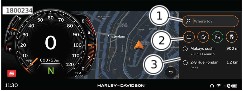
Figure 1. Destination Options
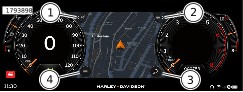
| 1 | Routes |
| 2 | Route options |
| 3 | Search |
| 4 | Menu |
Figure 2. Navigation Selections
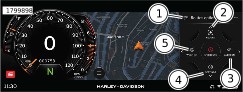
| 1 | Route options |
| 2 | Record |
| 3 | Audio |
| 4 | Settings |
| 5 | Weather |
Figure 3. Routes Options
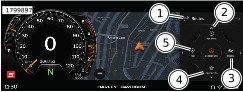
| 1 | Routes |
| 2 | Recents |
| 3 | Rides |
| 4 | Favorites |
| 5 | POI |
Figure 4. Routes
Active navigation showing turn by turn instruction
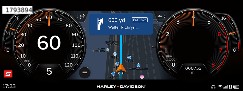
Figure 5. Navigational Instruction