Widgets are small customizable displays that allow the rider to see select additional information on the Instrument Module (IM). Widgets are customizable through the settings menu on the IM. Widgets can be changed using the Cursor/Select switch on the Right Hand Control Module (RHCM). Left selection moves through enabled widgets on the left side of the IM, right selection moves through enabled widgets on right side of the IM. See Operation → Instruments.
NOTE
Left and right widgets will default to blank with each cycle of the OFF/RUN switch.
Alert
See Figure 1. The alert widget displays information related to specific vehicle faults. The alert widget displays an alert icon which will match the illuminated indicator lamp, and the alert description, which will give more information related to the current fault.

| 1 | Alert icon |
| 2 | Alert description |
Figure 1. Alert Widget
Table 1. Alert Widget/Icon Displays
Widget | Widget Text | Cause | Action |
|---|---|---|---|
 | Alert – Shutdown Alert | Propulsion will start disable sequence | See dealer |
Alert – HV Disconnected | High voltage connection issue | See dealer | |
Alert – Motor Fault | Motor or inverter fault | See dealer | |
Alert – RESS Fault | Rechargeable Energy Storage System (RESS) internal fault | See dealer | |
Alert – Charge Bike Fault | RESS too low to enable propulsion | Charge motorcycle | |
 | Alert – Charger Fault | Onboard Charger (OBC) general fault | See dealer |
Alert – RESS Significantly Out of Balance | RESS at significant level of imbalance | See dealer | |
Alert – Jiffy Stand Not Trusted | Jiffy stand sensor fault | Cycle jiffy stand down and back up, if the alert is not corrected see dealer | |
Alert – Propulsion Inhibited(1) | General fault | See dealer | |
 | Alert – 12 V Battery Faulted | 12 V Battery needs replacement | See dealer |
Alert – 12 V Battery Weak | 12 V Battery needs replacement | See dealer | |
Alert – 12 V Battery Disconnected | 12 V battery leads loose or disconnected | See dealer | |
Alert – Load Shedding | 12 V battery fault | See dealer | |
Alert – OBC Over Temperature(1) | OBC overheating | Shutdown motorcycle and allow to cool | |
Alert – Low Charge | Low State of Charge (SOC) | Charge motorcycle | |
 | Alert – Coolant Pump Fault | Coolant pump fault. | See dealer |
 | Alert – Malfunction Indicator Lamp (MIL)(2) | Propulsion system fault. | See dealer |
 | Alert – OBC Too Warm(2) | OBC general fault | See dealer |
 | Alert – RESS Too Warm(2) | RESS general fault | See dealer |
 | Alert – Charge Port Fault(2) | Charge Port fault | See dealer |
 | Alert – Electric Vehicle Supply Equipment (EVSE) Fault(2) | EVSE fault | See dealer |
 | Alert – Charge Plug Latch Pressed(2) | Charge Plug latch pressed | Reinstall Charge Plug, if the alert is not correct see dealer |
 | Alert – Load Shedding (2) | General fault | Verify RESS has adequate charge, if the alert is not corrected see dealer |
 | Alert – Low Charge (2) | Low RESS charge | Charge vehicle, if the alert is not corrected see dealer |
 | Alert – Vehicle Motion Detected (2) | Vehicle Motion Detected | Cycle OFF/ RUN switch, if the alert is not corrected see dealer |
 | Alert – Vehicle Starting up (2) | Vehicle start up has been activated | Vehicle start up has been activated |
 | Alert – Propulsion Enabled (2) | Propulsion has been activated | Propulsion has been activated |
 | Alert – Propulsion Limited (2) | Low SOC, ride mode selected or general fault | Charge vehicle If unable to charge, see dealer |
 | No FOB | No assigned fob detected | Bring assigned fob within range |
 | Low FOB battery | Battery in fob low | Replace fob battery |
(1) Rectangle IM
(2) Round IM
Ride Mode
Rectangle IM: See Figure 2. The ride mode widget displays the seven available ride mode icons, four pre-set (1,2,3,4) and three custom (5). Current selectable ride modes will be shown in color, disabled ride mode icons are gray and the active ride mode will be highlighted.
Round IM: Refer to Table 2. The ride mode icon displays the currently selected ride mode. The selected ride mode can be changed using the mode button on the RHCM.
Ride Modes
- Sport: Delivers the full potential of the motorcycle for a performance oriented riding experience.
- Road: Delivers balanced performance with a blend of technology for daily use.
- Range: A combination of settings that results in smooth riding to get the most range out of a charge.
- Rain: Smooth acceleration with higher levels of traction control intervention, giving the rider greater confidence in poor conditions. This is also an appropriate setting for riders to become familiar with the motorcycle.
- Custom A, Custom B, (Custom C rectangle IM only): There are up to three possible customizable ride mode selections. When setting up a custom ride mode, the available level of power, regen and throttle response can be adjusted. Rectangle IM refer to Operation → Instruments → Settings Menu: Ride Mode.
NOTE
Custom ride modes must be set up before they can be used.
Round IM Ride Mode Customization
See Figure 3. The ride modes screen displays the available ride mode icons and configuration options. Ride modes can be enabled or disabled using the enable/disable button (1). To access the ride mode customization screen, press the edit button (2) next to custom ride mode A or B. Current selectable ride modes will be shown in color, disabled ride mode icons are gray and the active ride mode will be highlighted.
See Figure 4. The Ride Mode Customization screen displays configuration information for the custom ride modes. Configurable options include: Power - Maximum available power (1). Regen - Maximum available regenerative braking (2). Throttle - Maximum available throttle (3) Traction Control - There are four available traction control modes. These modes adjust the level of intervention for Front Wheel Lift Mitigation as well as traction control and are shown in order of decreasing intervention: Rain > Road > Sport. Decreasing intervention means more rear wheel slip during heavy acceleration and more front wheel lift allowed (4). Anti-Lock Braking - There are 2 available ABS modes. These modes are shown in increasing intervention order. Most intervention in Rain, least intervention in Road.
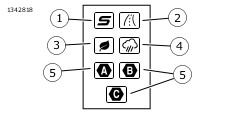
| 1 | Sport mode |
| 2 | Road mode |
| 3 | Range mode |
| 4 | Rain mode |
| 5 | Custom ride modes |
Figure 2. Ride Mode Widget (Rectangle IM)
Table 2. Ride Modes
ICON | Ride Mode |
|---|---|
 | Range |
 | Road |
 | Rain |
 | Sport |
 | Custom A |
 | Custom B |
 | Custom C (Rectangle IM) |
 | Ride mode fault |

| 1 | Enable/Disable |
| 2 | Edit |
Figure 3. Ride Mode Display (Round IM)

| 1 | Maximum available power in current ride mode |
| 2 | Maximum available regeneration in current ride mode |
| 3 | Maximum available throttle in current ride mode |
| 4 | Traction control level in current ride mode |
Figure 4. Ride Mode Customization
Power/Torque
See Figure 5. The Power/Torque widget displays power and torque information related to the current ride mode. The Power/Torque widget displays the current ride mode (2), maximum available power (1) and maximum available regen (3).

| 1 | Maximum available power in current ride mode |
| 2 | Current ride mode |
| 3 | Maximum available regeneration in current ride mode |
Figure 5. Power/Torque Widget
Range
See Figure 6. The Range widget displays estimated remaining range (1), maximum estimated range (2) and minimum estimated range (3) based on current riding behavior.
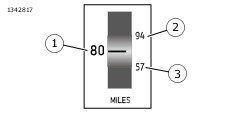
| 1 | Estimated range |
| 2 | Maximum estimated range |
| 3 | Minimum estimated range |
Figure 6. Range Widget
Battery (RESS)
See Figure 7. The battery widget displays SOC (1), watt-hour per mile (2), and RESS temperature (3).
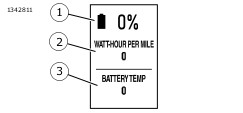
Figure 7. Battery Widget
Temp
See Figure 8. The temperature widget displays RESS temperature (1), motor controller temperature (2) and motor temperature (3).
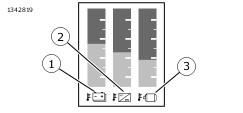
| 1 | RESS temperature |
| 2 | Motor controller temperature |
| 3 | Motor temperature |
Figure 8. Temperature Widget
Trip
See Figure 9. The trip widget displays the odometer reading (1), trip A (2) and trip B (3) mileage. The trip widget can also be configured from the settings menu to display trip K.
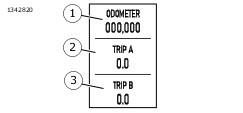
| 1 | Odometer |
| 2 | Trip A |
| 3 | Trip B |
Figure 9. Trip Widget
Bluetooth
In order to leverage Bluetooth enabled functions such as Navigation, Media display and controls, the phone must be paired through the LiveWire App.
Once paired, the Bluetooth widget displays phone connection status, device name and battery percentage.
Navigation
The navigation widget is intended to assist you when traveling. Always use personal judgment and observation of the actual road conditions while riding. In some circumstances, information provided in the navigation widget may be incomplete, incorrect or outdated. Road conditions, traffic laws and restrictions (such as no left turns, street closures, one way streets, road construction detours, and so on) can frequently change. Before following any instruction from the widget, check that the instruction can be done safely and legally.
If necessary, safely park the vehicle if there is difficulty following the route guidance or if there is a need to program a new route.
Program and review navigation routes with the vehicle stopped. Follow these steps to load navigation instructions.
| 1. | Ensure the LiveWire App is in proper state before pairing. a. Apple: LiveWire App must be closed before pairing. b. Android: LiveWire App must be open before pairing. | |
| 2. | Verify the phone is connected via Bluetooth to the LiveWire instrument module (Bluetooth icon is blue). | |
| 3. | Select the Navigation widget on the instrument display. It’s normal to see “No Nav” in the display prior to a route being pushed to the instrument. | |
| 4. | Open the LiveWire App on your phone. | |
| 5. | Select a route or a POI, then click the action boxes: Take Me There (not “send to bike”), then Continue, Start, and finally Let’s Ride a. Turn By Turn (TBT) navigation should be running on the app and appear on the widget of the instrument display in place of where “No Nav” was previously displayed. b. If TBT does not push to the instrument, close the app and re-open it and repeat step 3. |
Plan and review the route before riding the motorcycle.
See Figure 10. The navigation widget displays turn by turn navigation information that has been entered into the connected device using the LiveWire App. This information includes street name (1), Next action icon (2), distance to next action (3) and time information (4) (either arrival time or trip duration).

| 1 | Street name |
| 2 | Next action |
| 3 | Distance to next action |
| 4 | Time information |
Figure 10. Navigation Widget
Table 3. Navigation Icons
ICON | DESCRIPTION |
|---|---|
 | Start |
 | Finish |
 | Ended |
 | Navigation paused |
 | Navigation cancelled |
 | No signal |
 | Unidentified |
 | Straight |
 | Turn left |
 | Turn right |
 | Light left |
 | Light right |
 | Heavy left |
 | Heavy right |
 | U-Turn left |
 | U-Turn Right |
 | Keep left |
 | Keep right |
 | Keep middle |
 | Enter highway left |
 | Enter highway right |
 | Keep left highway |
 | Keep right highway |
 | Leave highway left |
 | Leave highway right |
 | Roundabout left(1) |
 | Roundabout right(1) |
 | Ferry |
(1) The number in the center of the icon corresponds to the exit to be taken, counted from the entry into the roundabout.
Music
See Figure 11. The music widget displays music information from a connected device. This information includes artist name (1), Song name (2), play pause icon (3) and either a playhead or album name (4).
NOTE
Must be used with a connected device through a connected headset.
Integration with hand control functionality (play, pause, volume. etc) is only through LiveWire App.
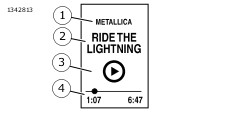
| 1 | Artist name |
| 2 | Song name |
| 3 | Play/Pause icon |
| 4 | Playhead/Album |
Figure 11. Audio Widget
Phone
See Figure 12. The phone widget displays current call status (1), caller ID or phone number (2), and answer with headset icon (3) (If connected to a supported phone).
NOTE
Must be used with a connected device through a connected headset.
Incoming call must be answered through controls on a connected headset.
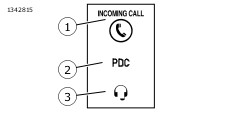
| 1 | Call status |
| 2 | Caller ID/Phone number |
| 3 | Answer with headset |
Figure 12. Phone Widget
Charging
See Figure 13. The charging widget displays estimated time to full charge (1).
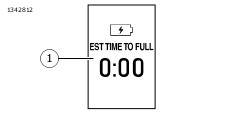
| 1 | Estimated time to full charge |
Figure 13. Charging Widget