Settings Menu
 WARNING
Set volume levels and other controls on audio and electronic devices before riding. Distractions can lead to loss of control, resulting in death or serious injury. (00088b)
See Figure 1 or Figure 2. The settings menu displays the menus used to set up ride modes, appearance, system, widgets (rectangle IM), icons (round IM) and user settings.
NOTE
To make full use of features and minimize distraction while on the road, configure the system with your personal preferences before riding.
After propulsion has been enabled the settings menu and touchscreen functions are disabled.
Table 1. Settings Main Menu
Press | Result |
|---|---|
[Settings]  | Configure instrument module settings. Do before riding the motorcycle. |
Available selections (rectangle IM): RIDE MODE, APPEARANCE, SYSTEM, CUSTOMIZE WIDGETS, USER SETTINGS. | |
Available selections (round IM): General, Ride Customization, Appearance, Bluetooth, Phone Notifications, Software. |
RIDE MODE
Table 2. Settings Menu: Ride Mode
Press | Result |
|---|---|
[RIDE MODE] | Allows enable and disable of available ride modes and allows setup of custom ride modes. |
Preset ride mode selections: Preset Ride mode selections: Enable/Disable, Copy+Edit.(1) | |
Custom ride mode selections: Enable/Disable, Power slider, Regen slider, Throttle slider, Traction control setting(2, 3) |
(1) Copy+Edit selection will copy the selected ride mode into a selected custom ride mode option and allow the rider to build a custom ride mode using a preset selection as a starting point.
(2) Power Slider adjusts how much overall power will be available in the custom ride mode. Regen slider adjusts how much regen will be enabled in the custom ride mode. Throttle slider adjusts the intensity of throttle response felt by the rider in the custom ride mode.
(3) The traction control level adjusts how much rear wheel slip the system will allow. Traction control adjustment does not affect the performance of drag torque slip control or ABS functions.
APPEARANCE
Table 3. Settings Menu: Appearance
Press | Result |
|---|---|
[APPEARANCE] | Configure instrument module appearance. |
Available selections (rectangle IM): SPEEDOMETER STYLE (DIGITAL/ANALOG), AUTO BRIGHTNESS (on/off), BRIGHTNESS slider. | |
Available selections (round IM): Auto-Brightness (on/off), Brightness Level (adjustable slider). |
Table 4. Settings Menu: General (Round IM)
Press | Result | |
|---|---|---|
[General] | Configure instrument module settings. Do before riding the motorcycle. | |
Available selections: Trip Reset, Adjust Date, LW App Time Sync, Adjust Clock Time, Clock Format, Units, Change Security Pin, Display Language. | ||
Trip Reset | Select from Trip A or B, Reset Trip | |
Adjust Date | Manually set date displayed | |
LW App Time Sync | Toggle On/Off | |
Adjust Clock Time | Manually set time displayed | |
Clock Format | Select 12 or 24 hour time display | |
Units | Select Standard or Metric units of measure | |
Change Security Pin | Select PIN for security system | |
Display Language | Select language to display | |
SYSTEM
Table 5. Settings Menu: System (Rectangle IM)
Press | Result | |
|---|---|---|
[System] | Configure instrument module settings. Do before riding the motorcycle. | |
Available selections: BLUETOOTH CLOCK LOCALIZATION ABOUT | ||
BLUETOOTH: (LiveWire App must be installed on phone for full functionality) |
| |
CLOCK: |
| |
LOCALIZATION: |
| |
ABOUT: |
| |
Updating Software
| 1. | Check software version. a. Refer to Table 5 or Table 6. SETTINGS> SYSTEM> ABOUT> SOFTWARE or Settings> Software> Software Information. This menu will show the current software version on the IM. b. Check for latest software version. See website: www.h-d.com/infotainment-support. | |
| 2. | Update software. a. Download the latest software version to Universal Serial Bus Type-C (USB-C) device. See website: www.h-d.com/infotainment-support. b. Unzip the downloaded file to extract the gpg file for rectangle IM or pv2 file for round IM. The downloaded file must be at the root directory of your USB-C drive in order for it to be detected by the IM. Only one gpg or pv2 file should be present at the root directory level. c. See Your Motorcycle → Primary Controls and Service Components → Controls and Service Components. Connect USB-C drive to motorcycle. d. Rectangle IM: Refer to Table 5. SETTINGS> SYSTEM> ABOUT> FACTORY OPTIONS. Select UPDATE SOFTWARE. e. Round IM: Refer to Table 6. Settings>Software>Infotainment SW Update. Select software update file. Select check mark to start update. f. Allow update to complete. g. Remove USB-C drive. |
Table 6. Settings Menu: Software (Round IM)
Press | Result | |
|---|---|---|
[Software] | View and update software versions. | |
Available selections: Infotainment SW Update, Regulatory Info, Software Information | ||
Infotainment SW Update | Displays available updates | |
Regulatory Info | Displays regional regulatory information | |
Software Information | Displays software part number/revision, hardware part number/revision and hardware serial number | |
Loading Additional Languages
| 1. | Check for available languages. a. Refer to Table 5 or Table 4. SETTINGS> SYSTEM> LOCALIZATION> LANGUAGE or Settings>general>display language. If the preferred language is not selectable it must be loaded into the IM. b. Check for latest language file. See website: www.h-d.com/infotainment-support. | |
| 2. | Load additional languages. a. Download the latest language file to USB-C device. See website: www.h-d.com/infotainment-support. b. Unzip the downloaded file to extract the asc file. The asc file must be at the root directory of your USB-C drive in order for it to be detected by the IM. Only one asc file should be present at the root directory level. c. See Your Motorcycle → Primary Controls and Service Components → Controls and Service Components. Connect USB-C drive to motorcycle. d. Refer to Table 5 or Table 4. SETTINGS> SYSTEM> ABOUT> FACTORY OPTIONS. Select LOAD ADDITIONAL LANGUGES. e. Allow update to complete. f. Remove USB-C drive. |
CUSTOMIZE WIDGETS (Rectangle IM)
See Operation → Widgets for more details on Widget functions.
Table 7. Settings Menu: Customize Widgets (Rectangle IM)
Press | Result | |
|---|---|---|
[CUSTOMIZE WIDGETS] | Available selections: ALERT RIDE MODE POWER RANGE BATTERY TEMPERATURE TRIP BLUETOOTH NAVIGATION AUDIO PHONE CHARGING | |
ALERT: |
| |
RIDE MODE: |
| |
POWER: |
| |
RANGE: |
| |
BATTERY: |
| |
TEMPERATURE: |
| |
TRIP: |
| |
BLUETOOTH: |
| |
NAVIGATION: |
| |
AUDIO: |
| |
PHONE: |
| |
CHARGING: |
| |
USER SETTINGS
Table 8. Settings Menu: User Settings (Rectangle IM)
Press | Result |
|---|---|
[USER SETTINGS] | Available selections: SMALL DISPLAY INFO, BATTERY BAR OPTIONS, CHANGE Personal Identification Number (PIN), PIN DISPLAY. |
Options for: | SMALL DISPLAY INFO(1)
|
BATTERY BAR OPTIONS
| |
CHANGE PIN | |
PIN DISPLAY (SHOW/TEMP/HIDE) |
(1) Small display refers to odometer display.
Charge State/Range
NOTE
Actual range will vary depending on riding habits, ambient weather and equipment conditions.
Speedometer
WARNINGTravel at speeds appropriate for road and conditions and never travel faster than posted speed limit. Excessive speed can cause loss of vehicle control, which could result in death or serious injury. (00008a)
See Figure 1 or Figure 2. The IM registers miles per hour (MPH) (U.S. models default) and kilometers per hour (km/h) (international models default). The IM can be configured to register either miles per hour or kilometers per hour through the settings menu.
Instrument backlighting changes with ambient lighting differences, changes in ambient light, such as such as going through a tunnel, may change level of backlighting.
Clock
Odometer
Pressing the trip switch with the OFF/RUN switch in either position activates the odometer reading.
- Odometer
- Trip odometer A
- Trip odometer B
- Trip odometer K (rectangle IM)
Press and release the trip switch to cycle through the displays.
Trip Odometers A, B (and K rectangle IM)
See Figure 1. To check mileage or to reset trip odometers, the OFF/RUN switch must be in the RUN position. Press and release the trip switch until the desired trip odometer is displayed. An A, B, or K on the left of the odometer display identifies the trip odometer.
NOTE
Trip K (Key on) resets each time the OFF/RUN switch is put into the RUN position if more than five minutes has passed since vehicle has been turned off.
To reset or zero trip odometers, have desired (A or B) odometer displayed. Press the trip switch and hold for approximately one second. The trip odometer resets to zero.
Propulsion Interlocks
See Figure 1 or Figure 3. The vehicle is equipped with propulsion interlocks. Propulsion interlocks are conditions that must be met before propulsion can be enabled. Propulsion interlock messages will be displayed on the IM when conditions are not met to enable propulsion.
Propulsion interlock messages include; CALL SERVICE, UNPLUG TO RIDE, PRESS RUN, WAIT - NOT READY, UNLOCK FORK, RAISE SIDE STAND, RELEASE TWIST GRIP and PRESS START.
Widgets (Rectangle IM)
See Figure 1. Widgets can be displayed on the left and right sides (2 and 26) of the IM. Each selectable widget displays unique additional information on the IM.
See Operation → Widgets.
Table 9. Settings Menu: Bluetooth (Round IM)
Press | Result | |
|---|---|---|
[Bluetooth] | Configure connections with bluetooth devices. | |
Available selections: Phone List, Add New Phone, Headset List, Add New Headset | ||
Phone List | Shows paired phones | |
Add New Phone | Use to pair new phone to vehicle | |
Headset List | Shows paired headsets | |
Add New Headset | Use to pair new headset to vehicle | |
Table 10. Settings Menu: Phone Notifications (Round IM)
Press | Result |
|---|---|
[Phone Notifications] | Configure which phone notifications are displayed. |
Available selections: Call notifications (on/off) and text notifications (on/off). |
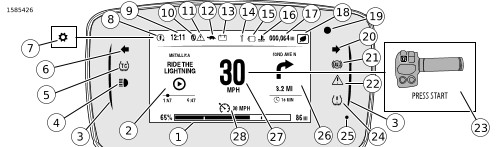
| 1 | Charge state/Range bar |
| 2 | Left widget |
| 3 | Side bar |
| 4 | Headlamp high beam |
| 5 | Traction control |
| 6 | Left turn signal |
| 7 | Settings |
| 8 | Propulsion enabled |
| 9 | Clock |
| 10 | Bluetooth |
| 11 | EV alert |
| 12 | Propulsion limited |
| 13 | 12V Battery discharge |
| 14 | Not used |
| 15 | Malfunction Indicator Lamp (MIL) |
| 16 | Coolant temperature |
| 17 | Odometer |
| 18 | Ride mode |
| 19 | Light sensor (not an indicator) |
| 20 | Right turn signal |
| 21 | Anti-lock Braking System (ABS) |
| 22 | EV fault |
| 23 | Propulsion interlock |
| 24 | Not used |
| 25 | Security/Fault |
| 26 | Right widget |
| 27 | Speedometer |
| 28 | Cruise control |
Figure 1. Instrument Module Displays and Selections (Rectangle IM)

| 1 | Charge state/Range bar |
| 2 | Left turn signal |
| 3 | Right turn signal |
| 4 | Speedometer |
| 5 | Headset connection |
| 6 | Bluetooth |
| 7 | Device signal |
| 8 | Device battery |
| 9 | 12V battery discharge |
| 10 | MIL/OBD fault |
| 11 | Low state of charge |
| 12 | Headlamp high beam |
| 13 | Propulsion enabled |
| 14 | ABS |
| 15 | Traction control |
| 16 | Coolant temperature |
| 17 | EV alert |
| 18 | Clock |
| 19 | Cruise control |
| 20 | Propulsion limited |
| 21 | Ride mode |
Figure 2. Instrument Module Displays and Selections (Round IM)
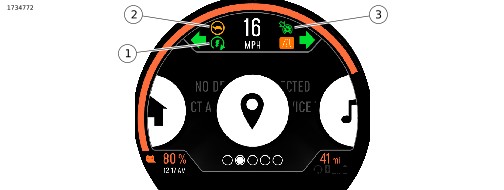
| 1 | Propulsion enabled |
| 2 | Propulsion limited |
| 3 | Cruise control enabled |
Figure 3. Propulsion States